A Google review widget displays selected customer reviews from your Google Business Profile directly on your website. The simplest setup uses a no-code widget service, while developers can build a custom solution with the Google Places API. The right choice depends on your budget, technical skills, design requirements, and how much control you need over updates.
Key Takeaways

- Use a no-code widget if you need reviews online quickly without editing code.
- Use the Google Places API when you need custom layouts, filtering, or full control over the user experience.
- Confirm that your Google Business Profile has the correct Place ID before connecting a widget.
- Keep Google attribution, reviewer names, star ratings, and review text visible where required.
- Load review scripts efficiently so your page speed and mobile experience don’t suffer.
- Add a clear write-a-review button so visitors can leave feedback without searching for your business.
What a Google Review Widget Does
Adding Google reviews to a website means placing a small display area on one or more pages that retrieves reviews associated with your Google Business Profile. A typical widget includes reviewer names, star ratings, review dates, profile photos, review text, and a link to see more reviews on Google.
A widget can appear as:
SMM & Reputation Growth
Grow Your Brand Online — Faster
Boost your social media presence and build a stronger online reputation with SMMSEO24. Trusted by businesses across the US.
- Fast Delivery
- 24/7 Support
- Secure Checkout
- A carousel showing one review at a time
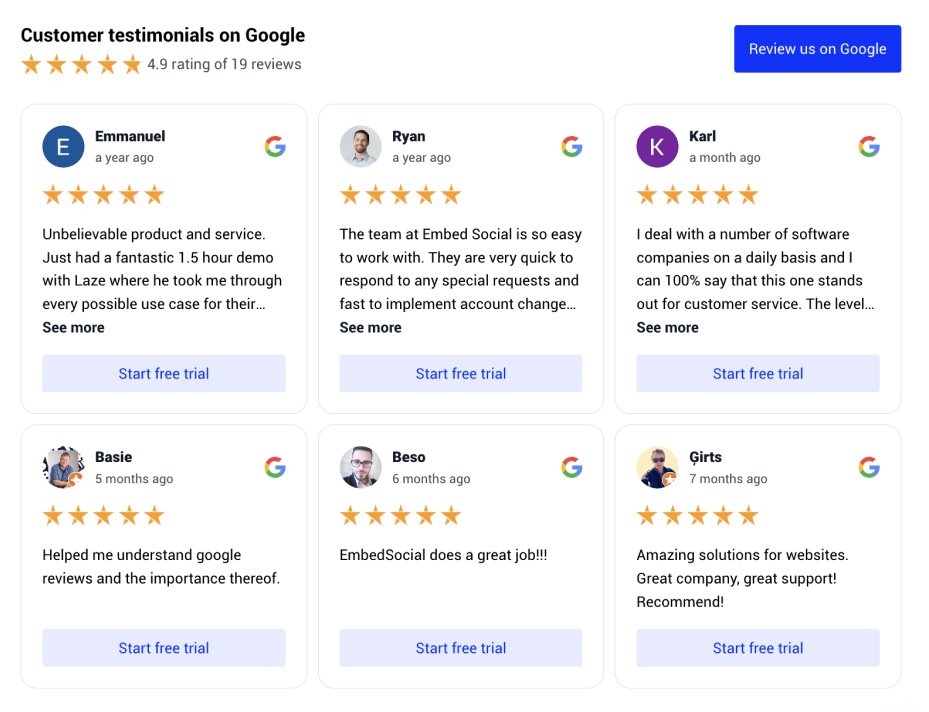
- A grid with three or more review cards
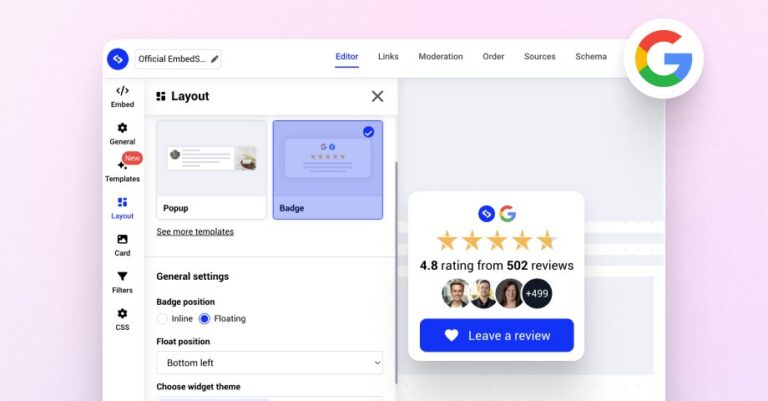
- A badge showing your average rating and review count
- A sidebar displayed beside a contact form
- A popup that opens after a visitor clicks a rating
- A single featured review placed near a service description
The widget usually connects to your business through one of three methods:
- A third-party service that handles the Google connection and display code
- A website plugin for WordPress or another content management system
- A custom integration using Google’s Places API
A widget isn’t the same as copying reviews into an ordinary text block. Static text becomes outdated, can lose its source attribution, and requires manual editing whenever a customer adds a new review. A connected widget can refresh its content automatically or on a scheduled interval.
Important distinction: A Google Maps embed can show your business location, directions, and basic listing information. It doesn’t always provide a complete, styled review section. If reviews are your main objective, choose a dedicated review widget or build a Places API integration.
Choose an Installation Method
Your best method depends on how quickly you need the feature and how much customization you want. Review the trade-offs before choosing a provider or writing code.
| Method | Best for | Technical effort | Typical cost |
|---|---|---|---|
| No-code widget service | Small businesses and quick launches | Low | Free to about $30 per month |
| WordPress plugin | WordPress sites with plugin support | Low to moderate | Free to about $100 per year |
| Website-builder app | Wix, Squarespace, Shopify, or Webflow users | Low | Free to about $40 per month |
| Google Places API | Developers needing custom presentation | Moderate to high | Usage-based; often low for small traffic |
| Fully custom backend | Agencies and high-traffic sites | High | About $500 to several thousand dollars to build |
These are broad market ranges, not guaranteed prices. Providers may charge extra for white-label displays, multiple domains, automated moderation, analytics, or more frequent refreshes.
Choose a hosted service when speed matters more than ownership of the implementation. Choose the API when you need a custom component, such as a review carousel that matches an existing design system.
Before paying for a service, check whether it supports:
- Your website platform, such as WordPress, Shopify, Wix, or Squarespace
- Google Business Profile connection rather than only Google Maps links
- Review source attribution and reviewer details
- Mobile layouts and responsive behavior
- Automatic refreshes without manual rebuilding
- Review filtering by rating, language, or date
- A way to export or remove your data if you cancel
Use a No-Code Widget
A no-code widget is usually the fastest way to publish reviews. You create an account with a widget provider, connect your business listing, select a layout, and paste the generated code into your website.
Basic setup process
- Find your business by entering its business name and location.
- Select the correct listing, checking the address and phone number.
- Choose a layout such as a review carousel or card grid.
- Set colors, spacing, font sizes, review count, and button labels.
- Copy the provider’s embed code.
- Paste it into an HTML block, custom-code area, or site section.
- Publish the page and test it on a phone.
Most hosted widgets use JavaScript. The script loads the reviews from the provider’s server and then inserts the display into a container on your page. If the provider offers both JavaScript and iframe versions, JavaScript generally provides more styling flexibility, while an iframe can isolate the widget from your site’s CSS.
What to check before publishing
Look at the widget in Chrome, Safari, and Firefox. Test both a narrow phone screen and a large desktop display. Confirm that:
- The review text doesn’t overflow horizontally.
- Long names and business locations wrap correctly.
- The star rating has a text alternative, not only colored stars.
- The Google attribution remains visible.
- Links open in a sensible way on mobile.
- The widget doesn’t cover a cookie banner or chat button.
- The page remains usable if the provider’s server is temporarily unavailable.
Pro Tip: Start with three to six reviews rather than loading every available review. A compact section is easier to scan, creates less page weight, and leaves room for a prominent “Read all reviews” link.
Add Reviews With Google API
The Google Places API is the most flexible official route for a custom review display. It allows your application to request place information and selected review data, then render the result in your own HTML and CSS.
A developer typically needs:
- A Google Cloud project
- Billing enabled for the project
- An enabled Places API
- A restricted API key
- The business’s Place ID
- A server-side or secure request strategy
You can find the Place ID through Google’s place-finding tools or a Places API search. Don’t assume the Place ID is the same as your business name, profile URL, or phone number.
Typical API workflow
| Step | What happens | Common mistake |
|---|---|---|
| 1. Identify the place | Find the correct Place ID | Selecting a similarly named business |
| 2. Request fields | Ask only for display data and reviews | Requesting unnecessary fields |
| 3. Receive the response | Your server gets place details | Exposing the key in public code |
| 4. Render the cards | HTML displays names, ratings, and text | Omitting attribution |
| 5. Cache the result | Store it for a reasonable period | Calling the API on every page view |
| 6. Refresh the cache | Retrieve updated content periodically | Never checking for new reviews |
A simplified server-side request might look conceptually like this:
Const response = await fetch( “Https://places.googleapis.com/v1/places/PLACE_ID?languageCode=en”, { Headers: { “X-Goog-Api-Key”: process.env.GOOGLE_MAPS_API_KEY, “X-Goog-FieldMask”: “displayName,rating,userRatingCount,reviews” } } ); Const place = await response.json();
The exact endpoint, headers, field names, and billing requirements can change, so a developer should check the current Google Maps Platform documentation before deploying. The key point is architectural: keep the API key on a protected server whenever possible, request only the fields you need, and send a sanitized result to the browser.
What the API doesn’t do
The API doesn’t give you unlimited access to every review in a business profile. Review availability, ordering, language, attribution, quotas, and returned fields are controlled by Google’s product rules. Your design should work even when fewer reviews are returned than expected.
Don’t build the page around a claim such as “display all reviews forever.” Instead, provide a Google review link for the complete, current list and use the API response for a representative selection.
Build a Custom Embed
A custom embed is useful when a standard provider can’t match your website’s layout. You can create review cards with ordinary HTML and CSS, then populate them from your backend or a trusted widget endpoint.
A practical review card should contain:
Customer name ★★★★★
Review text appears here.
Use CSS to control the card layout, spacing, border, and typography. Avoid placing review content into an image because search engines, screen readers, and users who need to copy text can’t access it properly.
Recommended custom features
- A responsive grid that changes from three columns to one
- A “Load more” control for additional review cards
- A visible Google source label
- A review date formatted for the visitor’s locale
- A link to your business listing
- A fallback message when reviews can’t load
- A server-side cache that reduces repeated API calls
- A screen-reader label for star ratings
Never silently replace an unavailable review with invented placeholder content. If the API fails, show a neutral message and retain a link to the live Google listing.
Install on WordPress

WordPress users generally have two choices: install a plugin or paste an embed into a block. A plugin is easier for nontechnical site owners, but it adds another dependency that must be updated and secured.
Plugin workflow
- Back up the site before installing a new WordPress plugin.
- Search for a review plugin with recent updates and clear support information.
- Connect the correct Google Business Profile or place listing.
- Configure the card layout and review count.
- Insert the widget with a block, shortcode, or widget area.
- Clear the site cache and test the published page.
Custom-code workflow
If your provider supplies JavaScript, use a Custom HTML block or the theme’s approved script area. Don’t paste unknown code into a post editor without reviewing what external scripts it loads.
For a developer-managed WordPress site, the code may be added through:
- A Custom HTML block
- A theme template
- A child theme
- A site-specific snippets plugin
- A page-builder HTML element
Avoid editing the parent theme directly because a theme update can erase the widget. Keep a record of the provider, script location, and account used to generate the embed.
Warning: Don’t install multiple review plugins that all load Google scripts. Duplicate scripts can create conflicts, slow the page, or produce two competing review displays.
Install on Other Builders
Most modern website builders provide an HTML, embed, app, or custom-code element. The labels differ, but the process is similar: copy the provider’s snippet, place it where the reviews should appear, publish, and test.
| Platform | Where to place it | Best practice |
|---|---|---|
| Wix | Embed Code or HTML element | Set an explicit height and test mobile behavior |
| Squarespace | Code Block | Use a section with enough vertical space |
| Shopify | Custom Liquid or theme section | Avoid loading the script on every template |
| Webflow | Embed element | Check overflow and interactions in Designer |
| GoDaddy Website Builder | HTML or third-party widget area | Confirm the provider permits script embeds |
| Custom HTML site | Template or component file | Load the script once and reuse the component |
Some builders sanitize JavaScript, block iframe content, or require a paid plan for custom code. If the widget appears blank in the editor but works on the published page, check the live page first; many builders restrict scripts inside editing previews.
Keep the embed container wide enough for the selected layout. A carousel designed for 900 pixels may become unreadable inside a 300-pixel sidebar. On mobile, use one card per row or a swipe-friendly carousel with visible controls.
Design and Compliance
A review widget should support trust without making the page misleading. Show a balanced selection and make the source clear. Don’t rewrite a customer’s words, remove unfavorable feedback solely because it’s unfavorable, or present a filtered rating as your overall Google rating.
Google’s User-Generated Content Policy covers prohibited and restricted review content, including manipulation, fake engagement, and conflicts of interest. Your website display should preserve the integrity of the original review rather than encouraging deceptive presentation.
Use these design rules:
- Show the overall rating only when it’s clearly identified as a Google rating.
- Keep the reviewer name and date where the source provides them.
- Label shortened content as a preview and link to the full review.
- Don’t use fake “verified customer” badges unless you have a separate, valid verification process.
- Don’t offer money, discounts, or gifts in exchange for positive reviews.
- Include a “Write a review” link that opens the correct business listing.
- Use sufficient color contrast for stars, text, and controls.
- Make carousel buttons keyboard accessible.
A widget can improve credibility, but it shouldn’t block important information such as pricing, service details, contact information, or accessibility controls.
Improve Speed and Accessibility
Third-party scripts can affect page speed, especially when they load fonts, images, analytics, and several network requests. Treat a review widget as a feature that needs performance controls, not as harmless decoration.
Use these practical techniques:
- Load the widget script only on pages that display reviews.
- Use lazy loading when the widget is below the first screen.
- Reserve a fixed height to reduce layout movement.
- Avoid loading ten profile images if three reviews are visible.
- Cache API results on your server instead of requesting them for every visitor.
- Minimize custom animations and autoplay behavior.
- Test with a slow mobile connection before launch.
- Provide a useful fallback link if JavaScript is disabled.
For accessibility, don’t communicate the rating through color alone. A row of yellow stars should have text such as “4.8 out of 5 stars.” Ensure keyboard users can reach “Read more,” “Next,” and “Write a review” controls. Use semantic headings and readable paragraph lengths inside review cards.
A good mobile layout usually places one review card per row, keeps the text at a comfortable size, and prevents horizontal scrolling. If using a carousel, make the current card obvious and provide buttons rather than relying only on touch gestures.
Troubleshoot Common Problems
| Problem | Likely cause | Fix |
|---|---|---|
| Wrong business appears | Incorrect Place ID or listing | Reconnect using the exact address and profile |
| Widget is blank | Script blocked or account disconnected | Check browser errors, permissions, and provider status |
| Reviews are outdated | Cache hasn’t refreshed | Trigger a refresh or shorten the cache interval |
| Only some reviews appear | API or provider limits | Add a link to the complete Google listing |
| Layout breaks on phones | Fixed width or excessive text | Use responsive CSS and one-column mobile cards |
| Stars show but text is missing | Field mapping or API response change | Inspect the response and update the renderer |
| Widget slows the page | Too many scripts or images | Lazy-load, cache, and remove unnecessary effects |
| Duplicate widgets appear | Plugin and manual code both active | Keep one installation method |
| Attribution disappears | CSS hides provider elements | Restore required labels and source information |
| Review link opens the wrong place | Generic search URL | Use the business’s exact Google listing link |
When troubleshooting, start with the published page rather than the editor. Then open the browser’s developer tools and check the Console and Network tabs. Look for blocked scripts, failed requests, mixed-content warnings, CORS errors, and HTTP status codes.
Warning: Never paste your private API key into a public JavaScript file, page source, or screenshot. Restrict keys by API, website domain, and usage limits, and rotate a key immediately if it has been exposed.
Measure and Maintain

After installation, check whether the widget helps visitors take useful actions. A review display should support contact requests, calls, bookings, store visits, or review submissions—not merely increase the number of decorative elements on a page.
Track these events where appropriate:
- Clicks on Read more
- Clicks on Write a review
- Clicks on phone, email, booking, or directions buttons
- Form submissions after a visitor sees the widget
- Widget loading failures
- Mobile versus desktop interaction rates
Don’t judge performance only by impressions. A smaller widget with a clear call to action may be more useful than a large carousel that pushes the contact form below the fold.
Create a simple maintenance schedule:
| Frequency | Task | What to check |
|---|---|---|
| Weekly | Visual check | Reviews, links, spacing, mobile display |
| Monthly | Technical check | Script errors, loading time, API usage |
| Quarterly | Content check | Business details, attribution, layout relevance |
| After redesign | Regression test | Page speed, accessibility, responsive behavior |
| After provider changes | Compatibility test | API fields, plugin version, authentication |
If your business changes its name, address, phone number, or Google listing, reconnect the widget and verify the Place ID. If a provider closes or changes its pricing, keep a copy of your review-page design so you can migrate without rebuilding the entire website.
Frequently Asked Questions
Can I embed Google reviews for free?
Yes. Some plugins and widget services offer free plans, although they may limit review counts, branding, refresh frequency, or domains. A custom API integration may also have low usage costs for a small site, but Google Cloud billing and API configuration can still be required. Compare free limits with branding restrictions before choosing.
Why are my Google reviews not showing?
The most common causes are an incorrect Place ID, a disconnected account, a blocked script, an exhausted quota, or a provider cache that hasn’t refreshed. Confirm the business listing, inspect browser errors, and test the widget on the published page rather than only inside your website editor.
Can I display all of my Google reviews?
Not necessarily. Google and third-party services may limit the number of reviews available to an integration. Build the widget around a selected review sample, then add a link to the full Google listing so visitors can see the complete and current collection.
Does a Google review widget help SEO?
It may improve trust and engagement, but it doesn’t guarantee better rankings. Reviews visibly displayed on your site aren’t automatically the same as eligible review structured data for search results. Avoid marking up third-party reviews in a way that violates search guidelines or misrepresents your own review data.
Can I hide negative Google reviews?
You shouldn’t selectively hide genuine reviews simply because they’re negative. You can moderate the presentation for length, relevance, or layout if the original meaning remains intact and the source is clear. Respond to legitimate concerns through your Google Business Profile and use transparent selection rules.
How often should a review widget update?
A small business commonly needs a daily or weekly refresh rather than a request on every page view. The right interval depends on review volume, provider settings, API quotas, and how current the display must be. Use cached results for performance and provide a live Google link for the newest information.
Conclusion
Start by identifying your exact Google Business Profile and choosing between a no-code widget and a custom API integration. Install it on one high-traffic page first, verify attribution, mobile usability, accessibility, and loading speed, then expand the same tested component across the rest of your website.

WRITTEN BY
Ryan Thomas
Ryan Thomas writes about online review management, covering review monitoring, customer feedback, ratings, negative reviews, and reputation building. His practical insights help businesses manage reviews effectively, strengthen customer trust, improve their online reputation, and turn feedback into opportunities for long-term growth.
View all posts →