A Google review badge can show your business’s rating, review count, and a link to your Google reviews directly on your website. For most businesses, the safest 2026 setup is a small, clearly labeled badge that sends visitors to your Google Business Profile rather than attempting to recreate Google’s interface.
Key Takeaways

- Use your Google review link as the badge’s destination so visitors can verify the rating and read the original reviews.
- Choose a static badge for speed and simplicity, or a widget when you need automatic rating updates.
- Don’t copy Google’s logo, star design, or interface in a way that suggests Google endorses your business.
- Place the badge near testimonials, contact details, pricing, or a booking button—not in a distracting pop-up.
- Show the review date, rating, and count honestly; update or remove stale figures when they change.
- Test the badge on mobile, confirm the link opens correctly, and monitor whether it produces clicks or inquiries.
What Counts as a Review Badge?
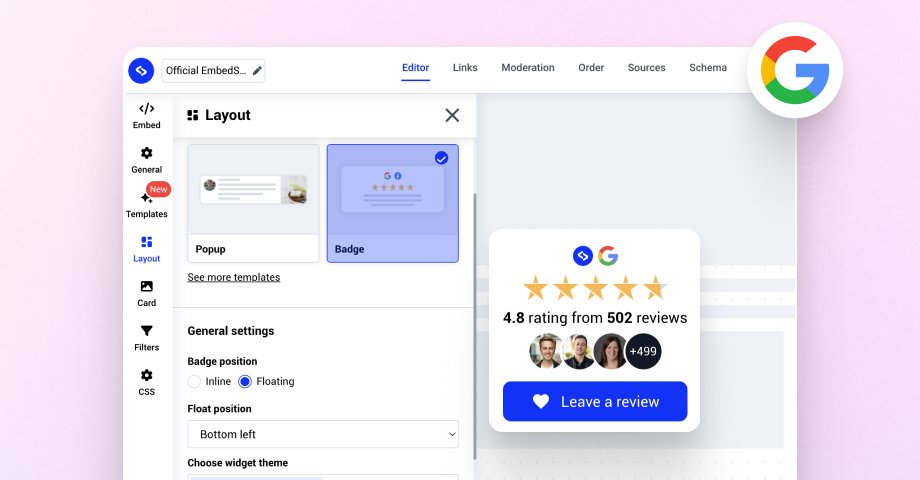
A Google review badge is a compact website element that highlights your business’s Google rating and directs visitors to your public reviews. It usually appears as a card, button, strip, or small floating element.
A useful badge normally contains:
SMM & Reputation Growth
Grow Your Brand Online — Faster
Boost your social media presence and build a stronger online reputation with SMMSEO24. Trusted by businesses across the US.
- Fast Delivery
- 24/7 Support
- Secure Checkout
- Your business name
- A rating such as “4.8 out of 5”
- A star graphic or text equivalent
- The number of Google reviews
- A “Read our reviews” or “See reviews on Google” link
- A Google attribution label where appropriate
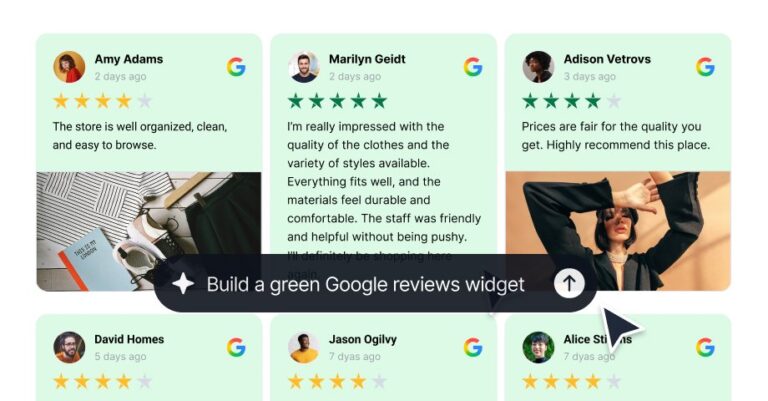
A badge is different from a full review widget. A badge is usually one small summary. A widget may display several review excerpts, reviewer names, dates, photos, filters, and carousel controls.
| Website element | What it shows | Best use |
|---|---|---|
| Review badge | Rating, review count, and link | Homepage, header, footer, contact page |
| Review widget | Several review excerpts or a carousel | Service pages and landing pages |
| Google Maps embed | Map, business listing, and location details | Local businesses and storefronts |
| Review button | A link asking people to view or leave reviews | Thank-you pages and email follow-ups |
The most trustworthy version is transparent and verifiable. If you display “4.8 stars,” visitors should be able to click through and see that rating on Google. Avoid presenting selected reviews as if they represent every review.
How to Add a Google Review Badge
There are three practical approaches: add a badge through a website platform, install a third-party widget, or create a simple custom badge yourself.
Option 1: Use a built-in block
Some website builders and local-business platforms include review blocks or integrations. In the editor, search for features named:
- Google Reviews
- Testimonials
- Business Reviews
- Social Proof
- Rating Badge
Connect the correct Google Business Profile, select a compact layout, and preview it on a phone. The exact menu names vary between Wix, Squarespace, WordPress plugins, Shopify apps, and other platforms.
This method is convenient, but check whether the block links to the genuine Google profile. Some tools display manually entered testimonials rather than retrieving current Google information.
Option 2: Install a review widget
A widget provider can retrieve your rating and display it automatically. This is useful when you operate several locations or want review excerpts to update without editing the site.
Before installing one, check:
- Whether the provider supports Google Business Profiles
- Whether the free plan includes your required number of locations
- Whether the widget adds branding or advertising
- Whether it loads through JavaScript
- Whether it offers accessibility controls
- Whether it provides a direct link to Google
- Whether it stores or republishes reviewer content
| Implementation | Setup effort | Typical cost | Main advantage | Main drawback |
|---|---|---|---|---|
| Text-and-link badge | Low | $0 | Fast and lightweight | You update the rating manually |
| Website-builder block | Low | $0–$30/month | No coding required | Features depend on the platform |
| Third-party widget | Low–medium | $0–$50/month | Automatic updates and layouts | Extra script may affect speed |
| Custom HTML/CSS badge | Medium | $0–$100 one-time | Full control over design | You must maintain the data |
| Developer-built integration | High | $100–$1,000+ | Tailored for multiple locations | Requires ongoing technical support |
These are typical ranges, not fixed prices. A provider may charge by location, monthly impressions, design features, or the number of review sources.
Option 3: Create a custom badge
A custom badge is often the best choice for a small business with one location. You can write a compact card in HTML and CSS, link it to Google, and update the rating when necessary.
The badge shouldn’t pretend to be an official Google component. Label it clearly, such as “Our Google reviews,” and use a neutral design that fits your website.
Get Your Google Review Link
Your badge needs a destination. The best destination is the business’s public Google profile or direct review page—not a search for a broad keyword such as “dentist near me.”
Sign in to the Google account that manages the Business Profile, open the profile management area, and look for the option to ask for reviews or share a review link. Google’s review link instructions explain where to find that link and how it can be shared with customers.
Before publishing it, verify the link:
- Open it in a private browser window.
- Check that the correct business name appears.
- Confirm the address, phone number, and hours are accurate.
- Make sure the page works for someone who isn’t signed in.
- Test it on a mobile device.
- Confirm that the link doesn’t open the wrong location.
For a business with several locations, create a separate badge and destination for each location. A customer looking for your Chicago office shouldn’t land on your Dallas profile.
Pro Tip: Keep the original Google link in your website documentation. If a marketing contractor changes the badge later, you’ll have a reliable destination to compare against.
Build a No-Code Badge

A no-code badge can be made with an ordinary button, image block, or text section. You don’t need a live review feed for a useful result.
Use a format such as:
4.8 out of 5 on Google
126 customer reviews
Read our reviews
Make the entire card clickable if possible, but keep the link text descriptive. “Read our reviews on Google” is clearer than “Learn more.”
Recommended badge content
Include these details when they’re current:
- Rating: Use the displayed Google rating, such as 4.8 out of 5.
- Review count: Include the current count only if you can update it.
- Source: Say “Google reviews” rather than implying the reviews came from your own survey.
- Action: Link to the public Google profile or review page.
- Update note: For a manually maintained badge, include “Updated [month and year].”
Don’t add a five-star graphic beside a rating of 4.2 without explaining what the graphic means. Don’t round 4.26 to 4.9. If your website shows a different number from Google, visitors may suspect that the badge is manipulated.
Keep the design accessible
Use readable text, sufficient color contrast, and a visible keyboard focus state. The badge should still make sense if images are disabled. Give any star image useful alternative text, such as “4.8 out of 5 Google rating,” rather than “stars.”
A simple badge layout works well:
| Badge area | Example | Design guidance |
|---|---|---|
| Label | Google reviews | Keep the source obvious |
| Rating | 4.8 / 5 | Use text, not color alone |
| Count | 126 reviews | Update when it changes |
| Link | Read reviews | Make the action specific |
| Date | Updated January 2026 | Use for manual badges |
Add Badge With Code
A custom badge can be added to a page through an HTML block, a WordPress Custom HTML block, or a website builder’s embed element. Replace the example values with your own verified information and review URL.
<a Class=”google-review-badge” Href=”YOUR_GOOGLE_REVIEW_URL” Target=”_blank” Rel=”noopener noreferrer” Aria-label=”Read our Google reviews”
Google reviews 4.8 out of 5 126 customer reviews Read reviews
.google-review-badge { Display: inline-flex; Flex-direction: column; Gap: 0.35rem; Max-width: 18rem; Padding: 1rem 1.15rem; Border: 1px solid #d9d9d9; Border-radius: 0.75rem; Background: #fff; Color: #202124; Font: 1rem/1.4 Arial, sans-serif; Text-decoration: none; Box-shadow: 0 2px 8px rgba(0, 0, 0, 0.08); } .google-review-badge:hover { Box-shadow: 0 4px 12px rgba(0, 0, 0, 0.14); } .google-review-badge:focus-visible { Outline: 3px solid #1a73e8; Outline-offset: 3px; } .google-review-badge strong { Font-size: 1.25rem; } .badge-label { Font-weight: 700; } .badge-link { Color: #1967d2; Font-weight: 700; }
This example is intentionally static. It doesn’t scrape Google, make an API request, or automatically fetch reviews. That keeps it simple and avoids exposing an API key in front-end code.
When dynamic code makes sense
A dynamic integration may be worthwhile if you have:
- Multiple locations
- A large review volume
- A central marketing team
- A developer who can maintain the integration
- A need to show current excerpts on many pages
Dynamic solutions require more care. Google access rules, quotas, authentication, caching, and profile permissions can change. Never place a private API credential in browser-visible JavaScript. Store sensitive credentials on a server and have the server return only the information the page needs.
Where Should the Badge Go?
Place the badge where a visitor is deciding whether to trust your business. The best location depends on the page’s purpose.
| Website location | Why it works | Avoid when |
|---|---|---|
| Homepage hero | Establishes trust immediately | The badge competes with the primary call to action |
| Header or navigation | Remains easy to find | The header is already crowded |
| Near testimonials | Connects the summary to detailed feedback | The testimonials come from another source |
| Contact page | Reinforces trust before an inquiry | The page needs a very short form |
| Pricing page | Helps visitors evaluate value | The rating is unrelated to the listed service |
| Footer | Provides consistent visibility | You need the badge to drive immediate action |
| Checkout or booking page | Addresses last-minute hesitation | The badge distracts from payment or scheduling |
On mobile, avoid a floating badge that covers chat buttons, cookie controls, or the checkout interface. A normal inline card is usually easier to use and less intrusive.
Use one prominent badge per page unless the page is specifically dedicated to reviews. Repeating the same rating in the header, sidebar, pop-up, and footer can look aggressive rather than credible.
Stay Within Google’s Rules
A badge should accurately represent your business and the source of the information. Don’t alter review text, hide unfavorable reviews while presenting a badge as representative of all feedback, or offer rewards in exchange for positive reviews.
Google’s platform policies can change, so review the current requirements before launching a campaign or automation. The safest approach is to request honest feedback from real customers and make it equally easy for them to leave a positive, neutral, or negative review.
Avoid misleading presentation
Do not:
- Display a rating from one location on every location page.
- Claim “Google certified” when Google hasn’t certified your business.
- Use “Google guaranteed” unless you’re referring to a specific, valid program.
- Publish a review excerpt without identifying it as a Google review.
- Change a customer’s wording to make it sound more favorable.
- Show an old rating after the live profile has materially changed.
- Put a fake Google logo inside a badge that looks official.
- Add hidden review text solely to influence search engines.
A badge is marketing content, but it still needs to be truthful. If you feature selected excerpts, introduce them as “Selected Google reviews,” not “What every customer says.”
Be careful with structured data
Adding review or rating schema to a page doesn’t guarantee a search-result star rating. Search engines decide whether, when, and how review information appears.
Don’t mark up reviews that your business copied from Google as though your own website collected them. Don’t combine reviews from unrelated platforms into one rating without clearly explaining the sources. Search appearance and eligibility depend on current search-engine policies, not merely on adding code.
Warning: A review widget that automatically imports content may include a reviewer’s name, photo, or comment. Check the provider’s privacy terms and display controls before publishing personal information across your site.
Troubleshoot Common Problems
Most badge failures are caused by an incorrect link, stale information, poor contrast, or a third-party script that doesn’t load.
| Problem | Likely cause | Fix |
|---|---|---|
| Wrong business opens | Copied a search URL or wrong location | Generate a fresh link from the correct profile |
| Rating is outdated | Static text was never maintained | Add a monthly review task or use a trusted widget |
| Badge is blank | Script blocked or provider account expired | Test without ad blockers and inspect the provider settings |
| Badge slows the page | Large script, fonts, or images | Use a static badge or load the widget after main content |
| Mobile overlap | Fixed-position CSS | Remove floating placement or add mobile spacing |
| Link doesn’t work | Missing URL, redirect, or permission issue | Test privately on desktop and mobile |
| Text is hard to read | Low contrast or small type | Increase font size and contrast |
| Reviews disappear | Source permissions or API changes | Check the provider and reconnect the profile |
If a widget fails, don’t leave an empty box on the page. Replace it temporarily with a plain text badge and direct link. A simple working link is better than a polished component that shows an error.
Check the page after website theme updates, domain migrations, plugin updates, and profile changes. These events can remove custom code or break the connection between the site and the review provider.
Track and Maintain the Badge

A badge should support a business goal, such as increasing profile visits, appointment requests, calls, or completed purchases. Tracking every possible event can create noise, so choose one or two meaningful actions.
Use a descriptive link label and, if your analytics setup supports it, track clicks with an event such as:
google_review_badge_clickgoogle_reviews_contact_pagegoogle_reviews_booking_page
Don’t add tracking parameters that break the Google destination. Test the final URL after analytics tagging.
Create a simple maintenance schedule:
| Task | Suggested timing | What to check |
|---|---|---|
| Verify rating and count | Monthly | Match the live Google profile |
| Test the link | Monthly | Desktop, mobile, and private browser |
| Check layout | Monthly | Theme changes, spacing, and overlap |
| Review accessibility | Quarterly | Keyboard focus, labels, contrast |
| Review widget billing | Monthly | Plan limits, branding, and renewal |
| Audit multiple locations | Quarterly | Correct profile for each page |
If the number of reviews changes frequently, omit the count from a static badge and show only “Read our Google reviews.” That prevents a visibly stale number while preserving the useful link.
Frequently Asked Questions
Does Google provide an official review badge?
Google provides ways to share your Business Profile and review link, but there isn’t one universal, mandatory copy-and-paste badge for every website. You can create a simple branded badge or use a compatible widget. Keep the source clear and link visitors to the genuine Google profile.
Can I add a Google review badge for free?
Yes. A text link, button, or custom HTML/CSS badge can cost $0 if you maintain the rating yourself. Website-builder features and widget services may have free plans, paid tiers, or limits based on locations and traffic. Check the current provider pricing before committing.
How do I make the badge update automatically?
Use a review-widget provider or a properly maintained server-side integration that supports your Google Business Profile. Automatic display can involve subscriptions, permissions, quotas, and privacy considerations. For one location, a manually updated static badge is often simpler and more reliable.
Can I show Google reviews in search results?
Adding a badge to your website doesn’t guarantee star ratings in search results. Search engines decide eligibility and appearance. Don’t add review structured data merely to force stars, and don’t represent copied third-party reviews as reviews collected by your own site.
Should the badge show my review count?
Show the count if you can keep it accurate. Otherwise, use “Read our Google reviews” without a number. An incorrect count can reduce trust, especially when visitors click through and immediately see different information.
Can I ask customers to leave reviews from the badge?
A badge can link to your profile or review page, but its usual purpose is helping visitors read existing reviews. For review requests, use a separate follow-up message or thank-you page. Ask for honest feedback and don’t condition a reward on a positive rating.
Conclusion
Add a small badge to your homepage or contact page first, link it to the verified profile, and test it on a phone and in a private browser. After a month, compare badge clicks with inquiries or bookings, then decide whether a dynamic widget is worth the extra cost and maintenance.

WRITTEN BY
Ryan Thomas
Ryan Thomas writes about online review management, covering review monitoring, customer feedback, ratings, negative reviews, and reputation building. His practical insights help businesses manage reviews effectively, strengthen customer trust, improve their online reputation, and turn feedback into opportunities for long-term growth.
View all posts →