How to edit Google reviews is simple: open Google Maps, find your review, choose the three-dot menu, select Edit review, change your text or rating, and save it. You can also delete the review instead, but you can’t edit another person’s review.
The steps can look different on Android, iPhone, and desktop. Your account, the review’s location, and whether you wrote the review or own the business also change what you can do.
Who can edit Google reviews?

This guide serves people who posted a Google review and now want to correct its words, rating, photos, or details. You may have used Google Maps on an Android phone, iPhone, or computer, and you’ll need access to the Google account that posted the review.
SMM & Reputation Growth
Grow Your Brand Online — Faster
Boost your social media presence and build a stronger online reputation with SMMSEO24. Trusted by businesses across the US.
- Fast Delivery
- 24/7 Support
- Secure Checkout
A second group searches this question after receiving a review for their business. Business owners can’t edit a customer’s review. They can reply to it, report it for a policy violation, or ask Google to review the report.
A third group may have lost access to the account that wrote the review. This page won’t help unless you can sign in to that account. If you’re managing a business listing, use the owner tools for replies and reports instead; don’t try to change the customer’s words.
What controls the edit option?
The Google account matters most. Google connects your reviews to the account that posted them. If the review isn’t listed under your contributions, switch accounts before trying anything else. Your profile picture in Google Maps shows which account is active.
The device changes the menu path. Android and iPhone use the Google Maps app, while a computer uses Google Maps in a browser. The labels are similar, but the three-dot menu may appear beside the review on desktop and below it in the app.
The place must still have the review attached. A business name change, merged listing, closed location, or removed review can make the review hard to find. Search the exact place in Maps, then check Your contributions rather than relying only on a general web search.
The type of change affects the result. You can usually change the star rating, written text, and photos you added. You can’t use an edit to add prohibited content, fake experience, personal data, or promotional material. The policy page is the best check when a change keeps failing.
The biggest mistake is choosing the wrong Google account. People often open Maps with a work or family account, don’t see the review, and assume it was deleted. If the review appears in the account that posted it, the account—not the phone—is usually the deciding factor.
Edit a Google review step by step
Google Maps lets the original author edit a review. Use these steps for the app or website, and stop if the review belongs to another account.
-
Sign in to the posting account. Open Google Maps on your phone or visit maps.google.com on a computer. Check the profile picture and confirm it’s the Google account that wrote the review.
-
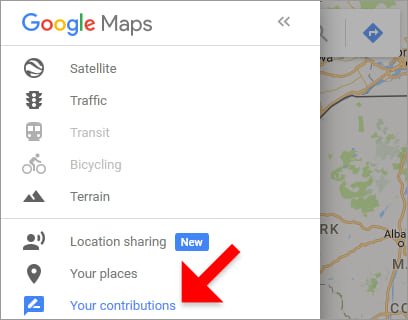
Open your contribution list. In the app, tap Contribute, then View your profile or See all reviews. On desktop, open the menu, choose Your contributions, and select Reviews. Your review should appear in the list.
-
Open the correct review. Compare the business name, location, star rating, and review date. If the place has several branches, open the branch named in your original review before changing anything.
-
Open the review menu. Tap or click the three dots beside your review. Choose Edit review when you want to keep the review, or Delete review when you want it removed instead.
-
Change the rating or text. Select the new star rating and replace only the words that need correction. Keep the description tied to your own visit, and remove private phone numbers, email addresses, or other personal details.
-
Check added media. Review any photos or videos attached to the post. Remove media that shows private information, unrelated people, or a different place before saving the edited review.
-
Save the change. Tap Post, Publish, or Save, depending on the device and current Maps version. Return to the place page and confirm that the new rating and wording appear.
-
Check the public view. Sign out or use a private browser window to view the listing without editing controls. Google may take a short time to display a changed review everywhere.
Don’t use developer tools, account recovery tricks, or third-party services to change a review. If you can’t access the posting account, contact Google Account support; if the review belongs to someone else, use the business report process instead.
Google review cases at a glance
The right action depends on who posted the review and what you want changed.
| Situation | What to do | What it takes | What to watch for |
|---|---|---|---|
| Correcting review text | Edit and save | A few menu steps | Keep facts accurate |
| Changing star rating | Edit rating | Account access | Rating affects average |
| Removing your review | Choose Delete | Permanent removal | Reposting starts fresh |
| Adding or removing photos | Edit media | Review each image | Protect private details |
| Business owner dislikes review | Reply or report | Owner access needed | No customer edit access |
| Review missing from profile | Switch accounts | Check account list | Branches may look alike |
Editing keeps the same review history, while deleting removes the post and any attached rating. Choose the option that matches your goal instead of deleting a review just to fix one sentence.
Details that improve an edit

Check facts before saving
Read the whole review after making the change, not just the sentence you edited. Confirm the business name, visit details, star rating, dates, prices, and names are still accurate. If the visit involved a different branch, correct the listing rather than leaving the location unclear.
Google’s review rules also matter. Don’t add threats, insults aimed at a person, private information, advertising, or claims about an experience you didn’t have. If a review contains sensitive details, remove those details before you save the edit.
Leave the rest alone
A common mistake is rewriting the whole review to answer a business owner’s reply. That can blur what happened and may make the post look promotional or retaliatory. Edit the specific error, then leave the parts that still describe your real experience.
If your goal is to change the business’s public reply, you can’t edit that reply as the reviewer. Only the account that posted the reply can change it, so contact the business or report a separate policy problem instead.
Google review problems and fixes
Most failures come from the wrong account, the wrong place listing, or a review that Google has removed.
| What you notice | What it usually means | What to do first | How to stop it happening again |
|---|---|---|---|
| Review isn’t listed | Wrong account active | Switch Google accounts | Check profile before posting |
| Edit option is missing | Review isn’t yours | Open account contributions | Use the posting account |
| Wrong business appears | Similar listings exist | Compare address and branch | Save exact place details |
| Changes don’t appear | Display update is pending | Reopen the listing later | Check public view afterward |
| Review disappeared | Google removed or filtered it | Check email and policies | Remove prohibited content |
| Photos remain visible | Media wasn’t removed | Edit the review media | Review attachments before saving |
| Rating stayed unchanged | Save action failed | Edit and save again | Confirm the public rating |
Don’t create a new account to replace a missing review before checking the original account and listing. Duplicate posts can create a second problem, and you may lose the original wording without fixing the cause.
Rules for Google reviews
Google’s Maps User Contributed Content Policy applies to review text, ratings, photos, and videos. Google can remove content that breaks its rules, including fake engagement, conflicts of interest, harassment, personal information, and advertising. Read the Google Maps review policy before changing a review that was flagged.
Your review should describe a genuine experience connected to the place. Don’t accept money or gifts for a positive rating, review your own business, copy another person’s words, or post several versions of the same review.
Rules can also differ for businesses, user accounts, and local laws. If your problem involves defamation, threats, privacy, or a legal demand, stop editing and ask a qualified lawyer or the relevant local authority for advice.
The real cost of editing
Editing a review usually costs no money, but it does take account access and a careful recheck. The time depends on whether you can find the original post immediately, whether the place has several branches, and whether you’re changing only text or also reviewing photos.
Deleting costs more than editing when you still need the record of your experience. Once deleted, the original wording and rating won’t remain on that post. If you then post again, you’ll need to write the review from the beginning.
The largest practical cost is a wrong edit. Changing a five-star rating to three stars can affect the business’s displayed average, while changing factual details can weaken your own credibility. Compare the review before and after saving, and check the current Google Maps listing for the result.
Keep the edited review accurate
Keep a copy of important wording before making a major change, especially if the review relates to a dispute. A screenshot can show what you originally posted, but it won’t restore a deleted review or replace Google’s account records.
Check the post again when you notice a change in the business name, branch, or visit details. If the review no longer matches the place, edit the location-related wording or remove the review instead of leaving incorrect information attached to the listing.
If Google removes the review after an edit, read any message in your email or Maps account. Remove the part that breaks the policy and use Google’s appeal option if one is offered; don’t repost the same material repeatedly.
When editing Google reviews is wrong

Editing isn’t the right choice if you didn’t visit the business. Remove the post if it was published from the wrong account, and don’t replace it with a review based on someone else’s experience.
It’s also wrong for a business owner trying to change a customer’s rating or wording. Reply calmly, report a clear policy violation, or ask the customer to update their own review.
Stop if the issue involves threats, private information, or a legal dispute. Don’t publish personal details to defend yourself; preserve the evidence and contact Google support, law enforcement for immediate danger, or a qualified lawyer for legal advice.
Frequently asked questions
Can I edit a Google review after posting it?
Yes, you can edit your own Google review after posting it. Open Google Maps with the original Google account, find the review under your contributions, choose the three-dot menu, and select Edit review. You can usually change the text, star rating, and attached media.
Why can’t I edit my Google review?
The usual reason is that you’re using a different Google account. Check the profile picture in Maps, switch accounts, and review each account’s contributions. If the review is missing everywhere, Google may have removed it or the place listing may have changed.
How long does it take for an edited Google review to show?
Google doesn’t promise one fixed display time for every edit. Check the public place page after saving, then look again later if the old version remains. A pending review action, changed listing, or policy check can delay what other people see.
Is it safe to edit a Google review?
Yes, if the edited content stays truthful and follows Google’s policies. Remove private information, threats, advertising, and claims based on someone else’s experience. Don’t add a person’s phone number, home address, or other sensitive details.
What happens if I delete my Google review?
The review and its rating are removed from your post. You’ll lose the original wording and attached media, so save a private copy first if you may need the details. Reposting later creates a new review rather than restoring the old one.
Does it matter if I change the star rating?
Yes, changing the star rating can change the business’s displayed average. Check the new rating carefully before saving, especially if you’re correcting a mistaken tap. Keep the written explanation consistent with the number of stars you choose.
Can a business edit my Google review?
No, a business can’t edit a customer’s review. The business can reply, report the review for a policy issue, or ask Google to assess it. Only the Google account that posted the review can change its text or rating.
Edit your Google review first
Open Google Maps while signed in to the account that posted the review. Open your profile or Contributions, select Reviews, find the business, and choose Edit review. Menu names can differ between the app and desktop site.
Before saving, confirm the business and branch. Similar listings can represent different locations, so editing the wrong one won’t change the review you intended to correct. Re-read the details and star rating, and remove claims you can’t support.
Return to the public listing and verify that the revised text and rating appear. If the review isn’t yours or includes a legal threat, stop and get appropriate help rather than editing it.

WRITTEN BY
Ryan Thomas
Ryan Thomas writes about online review management, covering review monitoring, customer feedback, ratings, negative reviews, and reputation building. His practical insights help businesses manage reviews effectively, strengthen customer trust, improve their online reputation, and turn feedback into opportunities for long-term growth.
View all posts →