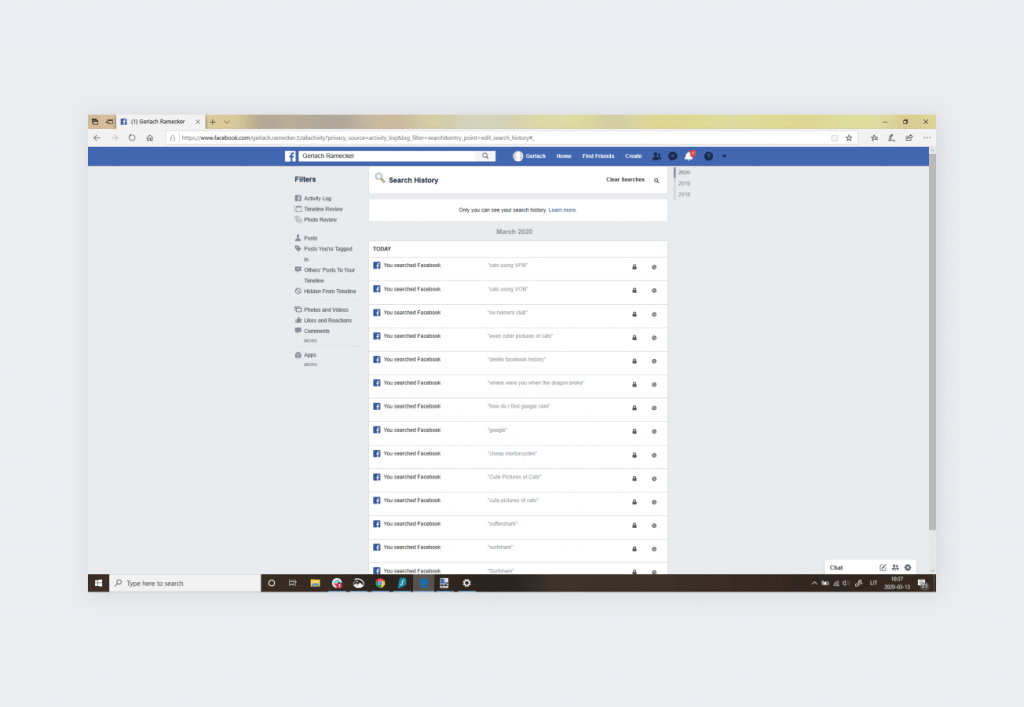
You can clear your Facebook search history in about 30 seconds by opening the search bar, tapping “See All,” and choosing “Clear Searches.” That removes every past query from your account at once. The exact path changes slightly if you’re on a phone or a computer, and whether you use the main app or Facebook Lite.
SMM & Reputation Growth
Grow Your Brand Online — Faster
Boost your social media presence and build a stronger online reputation with SMMSEO24. Trusted by businesses across the US.
- Fast Delivery
- 24/7 Support
- Secure Checkout
Who needs to clear Facebook searches

Someone sharing a tablet with family types this when they don’t want others seeing what they looked up. They already have the app open but don’t know where the delete button lives. What they need is a fast way to wipe the list before handing the device over.
A second reader works on a public computer at a library or hotel. They logged into their account, searched for a few things, and now worry the next person will see those terms. They need the browser steps, not the phone ones.
A third person just wants a fresh start. Their old searches make it hard to find new pages because the suggestions keep showing yesterday’s topics. This page serves the first two readers best. If you’re trying to recover a deleted account or report someone else’s activity, you’ll need Facebook’s official Help Center instead. Everything below assumes you’re already logged in and can reach your own settings menu.
What changes how you clear it
The device you hold decides which buttons you press. On an iPhone, the search history sits inside the main app’s menu. On a desktop browser, it’s under a different icon. If you’re on a phone, follow the mobile steps; if you’re at a desk, use the browser path.
Your app version matters too. Facebook updates its layout often, so a button that was on the left last month might be on the right today. Check your app store for the newest version if the screens here don’t match yours. Older versions of Facebook Lite place the search log in a separate settings tab rather than the top bar.
Account type is the third factor. A personal profile stores searches one way, while a business page connected to Meta Business Suite handles them differently. These steps apply only to personal profiles. If you manage a page through Business Suite, check Meta’s own documentation for that workspace.
The thing people get wrong most often is confusing search history with browsing history. Clearing your web browser’s cache doesn’t touch what you typed into Facebook’s search bar. You have to do it inside Facebook itself. Your actual search count lives in the Activity Log, which you can read yourself under Settings & Privacy to confirm everything is gone.
How to clear Facebook search history
Follow these steps on your phone first, since that’s where most people search. Each step tells you exactly what to tap and what you’ll see when it works.
- Open the Facebook app and tap the magnifying glass icon at the top of your screen.
- Look at the list under “Recent Searches” that appears right away.
- Tap the word “Edit” or “See All” on the right side of that heading.
- Press “Clear Searches” at the top left of the full history page.
- Confirm by tapping “Clear” again when the warning box pops up.
- Go back to the search screen to check that the list is empty.
If you’re on a computer browser instead, the path changes slightly.
- Click the magnifying glass icon in the top navigation bar.
- Click “Edit” next to “Recent Searches” when the dropdown opens.
- Click “Clear Searches” on the page that loads next.
- Confirm the action in the pop-up window that appears.
- Refresh the page to verify the list shows no previous terms.
The single judgment call here is whether to delete everything or just one item. If you only want to remove a specific search, tap the “X” next to that single term instead of hitting the main clear button. Deleting the whole list is permanent for your view, though Facebook’s servers may retain data according to their privacy policy. If you need legal-level data removal for a court case, contact a lawyer who handles digital privacy.
Situations you might run into
Different setups change what you see on screen. Here is how each common case plays out when you try to wipe your search log.
| Your setup | What to tap | Time it takes | Watch out for |
|---|---|---|---|
| iPhone app | Edit, then Clear Searches | Under 30 seconds | App updates move buttons |
| Android app | See All, then Clear | Under 30 seconds | Lite version uses different menus |
| Desktop browser | Edit link in dropdown | About 20 seconds | Cache might show old terms briefly |
| Facebook Lite | Settings, then Search History | About 45 seconds | Menu is deeper in settings |
| Shared tablet | Same as phone steps | Under 30 seconds | Log out completely after clearing |
| Messenger app | Not possible here | Zero | Messenger has no search log |
Each row above is a real situation you might face. Pick the one that matches your device right now. If you use Messenger, remember it doesn’t store Facebook searches at all.
Details that keep your searches private

Before you start deleting
Log out of any shared devices before you begin clearing anything. If you leave your session open on a library computer, wiping your phone won’t close that other tab. Check your active sessions under Settings > Security and Login first. End any session you don’t recognize by tapping the three dots next to it.
Turn off search suggestions if you don’t want Facebook predicting what you’ll type next. This setting lives in the same search menu. Disabling it stops the platform from using your past behavior to fill the search bar automatically. It’s a trade-off: you lose speed, but you gain privacy on a shared screen.
After the list is empty
Close the app completely instead of just minimizing it. Swiping it away from your recent apps list ensures the cleared state saves properly. Open it again and tap the search icon to confirm the space under “Recent” is blank.
Don’t immediately search for the same thing you just deleted. Facebook starts recording again the moment you type a new letter. If you need to look something up privately, use a direct URL to that person’s profile or page instead of the search bar. Typing a name into the search field creates a new entry instantly.
When your searches come back
These are the signs that your search history didn’t clear properly, along with the fix for each one.
| What you notice | What it usually means | What to do first | How to stop it happening again |
|---|---|---|---|
| Old terms still appear | App didn’t sync the deletion | Force close and reopen | Wait for sync before closing |
| Suggestions return fast | You searched again too soon | Delete the new entry | Use direct links instead |
| Clear button missing | Outdated app version | Update from app store | Turn on automatic updates |
| History shows on laptop | You only cleared your phone | Repeat steps on browser | Clear every device you use |
| Other accounts affected | You share a login | Change your password | Give everyone their own account |
| Terms reappear after logout | Session wasn’t fully closed | End session in security settings | Always log out on shared devices |
If old terms still show up after you’ve tried both the app and the browser, the issue is likely a server delay. Wait about ten minutes and check again. Don’t keep pressing the clear button repeatedly, as that won’t speed up the process.
Rules around your search data
Meta’s privacy policy governs what happens to your searches after you clear them from your screen. Removing them from your view doesn’t mean immediate deletion from their servers. According to Meta’s published guidelines, cleared data may remain in backup systems for a set period before full removal.
In the European Union, the General Data Protection Regulation gives you the right to request complete erasure of your personal data. You can submit this request through Facebook’s privacy settings under “Your Information.” The company must respond within 30 days under EU law.
For users in California, the California Consumer Privacy Act provides similar rights. You can ask Meta to disclose what data they hold and request deletion through their state-specific privacy portal.
If you’re dealing with a legal matter involving your search records, don’t rely on the clear button alone. Contact a qualified attorney who handles digital evidence. They can send formal preservation requests that carry legal weight, something the app’s delete button can’t do.
What clearing actually costs you
This action costs zero dollars and takes less than a minute on any current device. There’s no premium feature hiding behind the clear button, and you don’t need a special subscription to access it.
What it does cost is convenience. Once you wipe your history, you lose the quick shortcuts to pages, groups, or people you visit often. You’ll have to type full names again or scroll through your feeds manually to find them. That’s the trade-off between privacy and speed.
If you use a slow internet connection, the confirmation might take a few extra seconds to register. On a standard Wi-Fi network, the deletion appears instantly. On a weak cellular signal, give it up to ten seconds before assuming the button didn’t work.
There’s also a hidden cost in time if you forget to clear other devices. Spending five minutes checking your active sessions prevents hours of worry later. The effort scales with how many places you stay logged in. One phone takes thirty seconds; four devices across two platforms might take five minutes total.
Keeping your history clear going forward
After you’ve wiped your searches, maintaining that clean state requires small habits rather than repeated big efforts. The easiest approach is clearing your history at the end of each session if you share your device.
Watch for the “Recent Searches” section every time you tap the magnifying glass. If even one term appears there that you didn’t intend to save, clear the list immediately. Don’t let small entries pile up until the list becomes long enough to feel overwhelming.
Facebook doesn’t offer an automatic schedule to clear searches on its own. You have to trigger it manually each time. Set a reminder on your phone if you tend to forget, especially after using a shared computer.
If you notice your search bar suggesting terms you never typed, check whether someone else used your logged-in session. End unknown sessions through the Security and Login settings page. A clean search history only stays clean if your account access stays restricted to you alone.
When clearing searches isn’t enough

Deleting your search log won’t help if you’re trying to hide your activity from Facebook itself. The platform still tracks what pages you visit and what ads you click, regardless of what’s in your search bar. If your goal is stopping targeted advertising, you need to adjust your Ad Preferences under Settings instead.
Clearing searches also doesn’t remove messages you sent or posts you liked. Those live in your Activity Log, which requires a separate cleanup process. If you want a full reset of your visible actions, go to Settings > Your Activity and review each category individually.
If someone is using your account without permission, clearing searches is the wrong first step. Change your password immediately and turn on two-factor authentication. If you suspect your account was compromised in a way that affects your finances or identity, contact your bank and file a report with the Federal Trade Commission at IdentityTheft.gov. Don’t spend time tidying your search bar when your login credentials are exposed.
Frequently asked questions
Can I delete just one Facebook search?
Yes, you can. Tap the magnifying glass to open your recent list, then press the “X” next to the single term you want gone. The rest of your history stays intact. This works on both phones and computers.
Why do my old searches keep coming back?
They return because you either searched for them again or didn’t clear every device you use. Check your active sessions under Security settings and end any you don’t recognize. Then repeat the clear steps on each remaining device.
How long does it take to clear the list?
It takes under 30 seconds on a phone with a normal internet connection. On a slow cellular network, wait up to 10 seconds for the confirmation screen to appear. Desktop browsers usually respond faster than mobile apps.
Is it safe to clear my search history?
Yes, it’s completely safe. Clearing searches only removes the shortcuts from your view. It doesn’t delete your account, remove your friends, or affect any posts you’ve made. You can start searching normally right after.
What happens if I don’t clear my searches?
Nothing breaks, but anyone who opens your app will see what you looked up recently. The terms also influence what Facebook suggests when you start typing. Leaving them there trades your privacy for faster navigation.
Does clearing searches notify anyone?
No, Facebook doesn’t send alerts when you clear your search history. No friends, group admins, or page managers receive a notification about this action. It happens silently within your own account settings.
Can I recover searches after I clear them?
No, you can’t undo this action through the app. Once you confirm the deletion, the list disappears from your interface permanently. You’d have to manually search for those pages or people again to rebuild your shortcuts.
Do Messenger searches count here?
No, they don’t. Messenger has its own separate conversation search function that doesn’t connect to your main Facebook search history. Clearing one doesn’t affect the other. You manage them in entirely different parts of the app.
Start with your phone right now
Open your Facebook app and tap the search icon to see your saved search history. Follow the mobile steps above to clear the list, then close and reopen the app to confirm the space is empty. If you see terms you didn’t type after refreshing, end your active sessions immediately and change your password.

WRITTEN BY