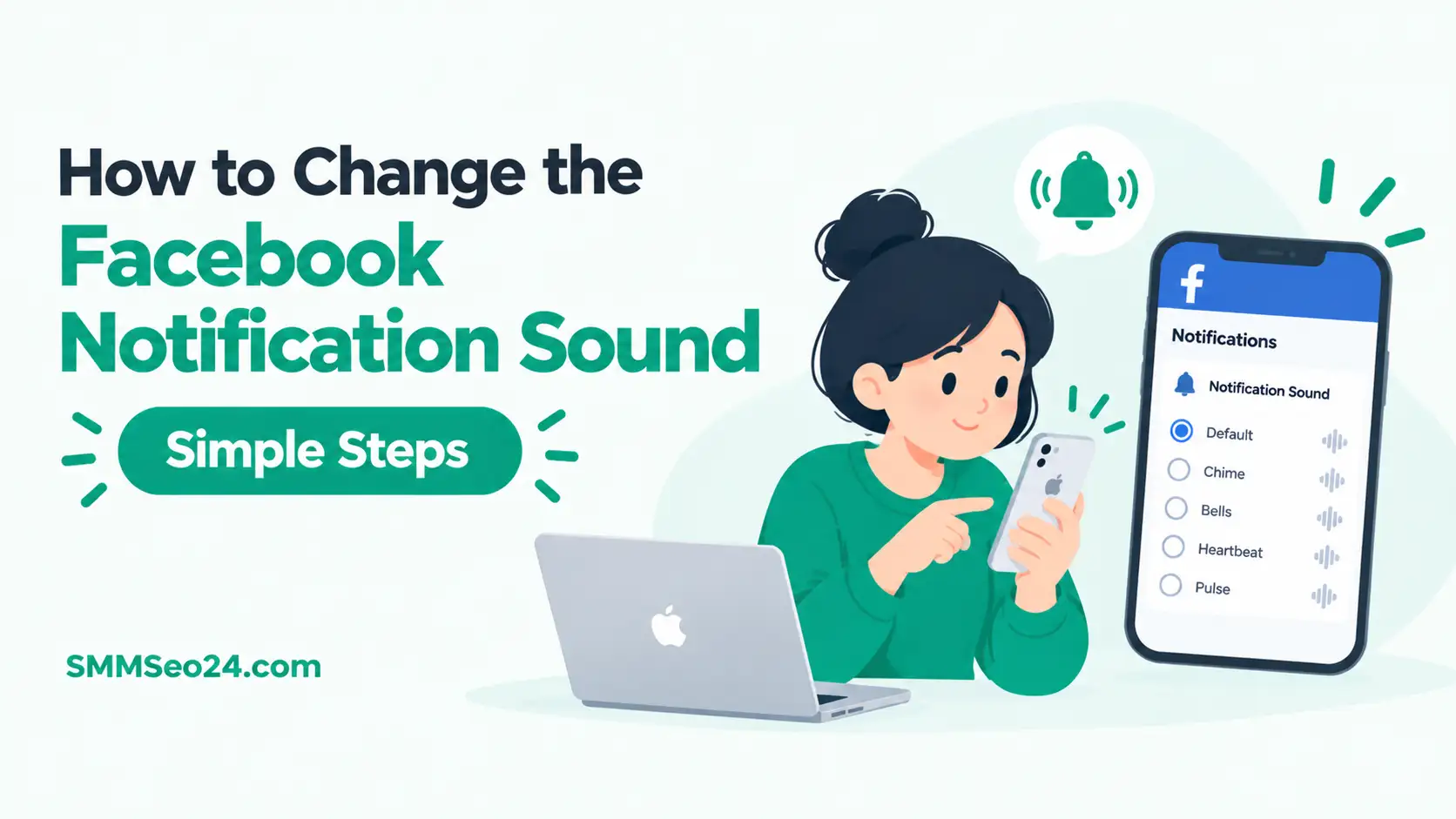
You can’t change the Facebook notification sound inside the app itself. The app uses whatever default tone your device assigns to it, so you must swap it at the operating system level through your phone’s system settings.
SMM & Reputation Growth
Grow Your Brand Online — Faster
Boost your social media presence and build a stronger online reputation with SMMSEO24. Trusted by businesses across the US.
- Fast Delivery
- 24/7 Support
- Secure Checkout
Your phone’s brand and its software version decide which menus you’ll use. An iPhone handles this through a separate app from Meta, while Android phones use the main system settings. Your exact path depends on whether you’re running iOS or Android.
Who needs to change their Facebook alert tone

Someone who hears every ping but wants a different one for Facebook is the first type of reader here. They’ve got the app installed and notifications turned on. What they actually need is the right settings path for their specific phone, not a feature that doesn’t exist in the app.
A second person might be trying to mute Facebook entirely without silencing their whole phone. They already know where the volume buttons are. They just need the steps to turn off that single app’s noise while keeping texts and calls loud.
A third reader is looking for custom audio files—maybe a song clip or a funny voice memo—to use as their alert. They’ve downloaded an MP3 and want it assigned to Facebook specifically.
This page won’t help them much, because neither iOS nor Android lets you assign a unique custom file directly to the Facebook app without extra workarounds. If that’s your goal, you’ll need a guide on setting custom ringtones per contact or using a third-party automation app like Tasker on Android.
The rest of this page assumes you just want a different standard tone from your phone’s built-in list, and you’re doing it yourself on a personal device.
What decides which settings path you follow
Your phone’s operating system is the biggest factor here. iPhones don’t let you pick a unique sound for individual third-party apps natively. You have to go through Messenger if you want a distinct tone for chats, or accept the default tri-tone for general alerts. Android phones give you direct control over each app’s notification channel.
The version of your software matters just as much. Android 8.0 introduced notification channels, which split an app’s alerts into categories like “comments” or “messages.” If your phone runs anything older than that, you’ll only see one master switch for all Facebook sounds. Check your version under Settings > About Phone before you start hunting for missing menus.
Whether you use the main Facebook app or rely solely on Messenger changes your options too. Facebook handles likes and comments, while Messenger handles direct chats. Each app has its own sound setting on Android. On iOS, Messenger has its own internal sound picker, but the main Facebook app still relies on the system default.
People get the operating system difference wrong most often. They search for an Android menu on an iPhone and assume the feature is broken. It isn’t broken; it just lives in a completely different place depending on the brand in your hand.
If you’re on iOS, focus on the Messenger app for chat tones. If you’re on Android, go straight to your system settings and look for notification channels.
Steps to Change the Facebook Notification Sound
You’ll do this on your phone, not on a computer. The web version of Facebook doesn’t control your mobile alerts. Pick the set of steps that matches your device below.
For Android phones
- Open your phone’s Settings app. Don’t open the Facebook app yet.
- Tap Apps or Apps & notifications, depending on your phone’s brand.
- Find and tap Facebook in the list of installed apps.
- Tap Notifications. You should see several categories listed here.
- Tap a specific category, like Comments or Likes. Don’t just tap the toggle switch next to it; tap the text itself to open its deeper settings.
- Tap Sound. Your phone will show a list of available tones.
- Pick the new tone you want from the list. Play it once to confirm you like it.
- Press the back arrow to save. The new sound applies immediately.
Repeat steps 5 through 7 for every category you want to change. You can give comments one sound and friend requests another.
For iPhones using Messenger
Apple doesn’t let you change the main Facebook app’s sound independently. But you can change the tone for messages through the Messenger app.
- Open the Messenger app on your iPhone.
- Tap your profile picture or the three-line menu in the top corner.
- Scroll down and tap Notifications & sounds.
- Tap Notification sound.
- Choose a new tone from the list provided by Messenger.
- Tap the back arrow to save your choice.
For the main Facebook app on an iPhone, you’re stuck with the system default unless you turn it off completely. The judgement call here is deciding which alerts actually deserve a sound. Giving every single category a loud tone defeats the purpose of customizing it. Pick sounds only for the things you genuinely need to hear right away.
Different situations and what to tap
Every phone handles these alerts slightly differently. The table below covers the situations you’re most likely to run into. Match your case to the left column, then follow the action.
| Your situation | What to do | What it takes | Watch out for |
|---|---|---|---|
| Android user wanting new comment sound | Tap category name in app notifications | Under 1 minute | Tapping the toggle instead of text |
| iPhone user wanting new chat tone | Change sound inside Messenger settings | Under 1 minute | Looking in main Facebook app |
| Any phone wanting silence | Turn off sound toggle for that app | 10 seconds | Muting entire phone by mistake |
| Samsung Galaxy user | Use notification categories in settings | Under 1 minute | Categories hidden until enabled |
| Older Android (pre-8.0) | Change single master sound in app info | Under 1 minute | No separate categories available |
| Wanting custom MP3 file | Add file to phone’s ringtone folder first | 5 to 10 minutes | File format must be supported |
Samsung users sometimes need to enable notification categories first. Go to Settings > Notifications > Advanced settings and turn on “Manage notification categories for each app” if you don’t see the detailed list.
Older Android phones won’t show categories at all. You’ll just see one sound option for the entire app. That’s normal for software released before 2017.
Details that keep the sound working right

Checking the correct notification channel
Android splits alerts into channels, and picking the wrong one leaves the original sound playing. You might change the tone for “Likes” but leave “Comments” untouched, which is why you still hear the old ping when someone replies to your post.
Tap the actual text of the category in your settings, not the on/off switch beside it. The switch just mutes it. The text opens the menu where the sound lives. If you don’t see any categories listed on your Android phone, check your system version. Phones running Android 7.1 or older don’t support channels. You’ll only get one master sound setting for the whole app.
Leaving Do Not Disturb alone
Your phone’s Do Not Disturb mode overrides every app-specific setting you make. If you’ve changed the tone but still hear nothing, check that mode first. A quick swipe down from the top of your screen usually shows the moon icon if it’s active.
Don’t try to fix a silent app by reinstalling it. Reinstalling wipes your custom choices and puts the default tone back. Always check your volume sliders and Do Not Disturb status before you delete anything.
Troubleshooting when the tone won’t swap
Sometimes the new sound doesn’t play even after you’ve followed the steps perfectly. Here’s a breakdown of what usually goes wrong and how to fix it fast.
| What you notice | What it usually means | What to do first | How to stop it happening again |
|---|---|---|---|
| Old sound still plays | Wrong notification channel selected | Tap the exact category text | Change sound for every channel |
| No sound at all | Phone is on silent or vibrate | Flip the physical mute switch | Check side switch before testing |
| Sound works, then stops | Battery saver killed background alerts | Turn off battery optimization for Facebook | Exclude social apps from power saving |
| Can’t find sound menu | Software version is too old | Update your phone’s operating system | Keep automatic system updates turned on |
| Only vibrates now | Vibrate-only setting was toggled on | Switch from vibrate back to sound | Avoid tapping random toggles quickly |
| Messenger ignores new tone | In-app setting overrides system setting | Change sound inside Messenger app itself | Always check in-app settings first |
Battery optimization is the quietest culprit here. Your phone tries to save power by stopping apps from running in the background. When that happens, the alert either arrives late or plays the default system beep instead of your custom choice. Excluding the app from battery saver fixes it.
Rules that limit what you can change
Neither Apple nor Meta allows third-party apps to hijack your phone’s core audio routing. That’s a security boundary, not a bug. Apple’s iOS guidelines strictly prevent apps from overriding system-level notification sounds independently. You can verify this restriction in the official developer documentation published by Apple.
On Android, the rules are looser, but your phone’s manufacturer can still lock things down. Samsung, Xiaomi, and OnePlus all add their own layers over the base Android system. Some hide the notification channels by default. Others bundle all social media alerts into one group you can’t separate.
There’s no legal rule against changing your own alert tones, but workplace policies might apply. If your company manages your phone through Mobile Device Management software, they can block access to notification settings entirely. You’d need to ask your IT department to unlock that menu.
If you’re trying to push a custom audio file to thousands of users through a business page, stop. You don’t have that permission. Page admins control content, not the hardware settings of the people reading it.
What swapping the tone actually costs
Changing this setting costs zero dollars. It doesn’t require a premium subscription or a paid app. The only currency you spend is time, and it shouldn’t take more than two minutes if you know where to tap.
The hidden cost is consistency across devices. If you use Facebook on an iPad, an Android phone, and a work laptop, you have to adjust the settings on each one separately. There’s no cloud sync for notification sounds. What you set on your phone stays on your phone.
Data usage isn’t a factor here. Audio files for system alerts are tiny, usually under 100 kilobytes. Downloading a new tone from your phone’s built-in store won’t dent your monthly plan.
If you decide to buy a custom ringtone pack from an app store, that’s where money enters the picture. Those packs range from free to a few dollars. But you don’t need them. Every modern smartphone ships with dozens of built-in tones that work perfectly fine for this job.
The real trade-off is between variety and simplicity.
Keeping the new sound active
Once you pick a tone, it stays put until something else resets it. The most common thing that resets it’s an app update. When Facebook pushes a major new version, it occasionally rebuilds its notification channels. If that happens, your custom choice reverts to the default.
Check your sound settings after any major app update. You don’t need to do this weekly. Just peek at the menu when the app asks for new permissions or changes its layout significantly.
If you factory reset your phone, everything goes back to zero. Write down which tones you used for which categories if you care enough to recreate them later. Otherwise, you’ll be guessing.
The sign that your setting has slipped is hearing the standard system ping when you expected your custom chime. Don’t ignore it. Go back into the settings path you used originally and reapply your choice. It takes less than a minute to fix.
When changing the Facebook app tone fails

Trying to set a unique sound for the main Facebook app on an iPhone is a dead end. Apple simply doesn’t allow it. If you need distinct alerts for different platforms, use email forwarding or a unified inbox app instead of fighting iOS restrictions.
Using a third-party modified version of Facebook to force custom sounds is the wrong move. Those apps violate Meta’s terms of service. Your account can get permanently banned for logging in through unauthorized software. Stick to the official app and change what the system allows you to change.
If your phone is managed by your employer, you likely can’t access these settings at all. Enterprise mobility management software locks down notification channels to prevent data leaks or distractions. Don’t try to bypass it with rooting or jailbreaking. Talk to your IT administrator if the alerts are disrupting your work.
This approach also doesn’t work for desktop browsers. Changing the sound on your phone does nothing for the Facebook tab open on your computer. Browser notifications use your operating system’s web alert sound, which requires a completely different set of steps in Windows or macOS.
Frequently asked questions
Can I change the Facebook sound on an iPhone?
No, not for the main app. Apple blocks third-party apps from setting custom notification sounds individually. You can only change the tone for messages inside the separate Messenger app. Everything else uses your phone’s default alert sound.
Why did my Facebook alert sound go back to normal?
An app update likely reset your notification channels. When Facebook installs a major update, it sometimes rebuilds its alert categories. You’ll need to go back into your phone’s settings and reassign your preferred tone to the newly created channels.
How long does it take to swap the alert tone?
Under one minute on an Android phone running Android 8.0 or newer. You just navigate to Settings, tap Apps, select Facebook, open Notifications, pick a category, and choose a sound. It takes slightly longer if you’re customizing multiple categories.
Is it safe to download custom ringtones for this?
Yes, if you get them from your phone’s official app store. Avoid downloading random MP3 files from unknown websites. Malicious audio files are rare, but sideloading files outside your device’s secure ecosystem always carries unnecessary risk. Stick to verified sources.
What happens if I mute Facebook notifications entirely?
You won’t hear any sounds or feel vibrations from the app. Banners and lock screen alerts disappear too. You’ll only see new activity when you manually open the app and refresh your feed. Your account remains fully active otherwise.
Does changing the sound drain my battery faster?
No. The audio file size for a notification tone is negligible. Swapping a short beep for a slightly longer chime doesn’t change how much power your phone uses. Battery drain comes from screen time and background data syncing, not alert sounds.
How many different sounds can I set for Facebook?
On Android 8.0 and newer, you can set a different sound for every single notification channel the app creates. That usually means around five to eight distinct categories, including comments, likes, live videos, and friend requests.
Why can’t I find the sound option in my settings?
You probably tapped the toggle switch instead of the category name. Tapping the switch just turns the alerts on or off. You have to tap the actual text of the notification category to open the deeper menu where the sound option lives.
Start with your phone’s settings menu
Open your phone’s settings app and navigate to the Facebook notification menu. Pick the category that bothers you most—usually comments or tags—and assign it a quieter, shorter tone. If the menu crashes when you tap it, contact your device manufacturer’s support team.

WRITTEN BY